
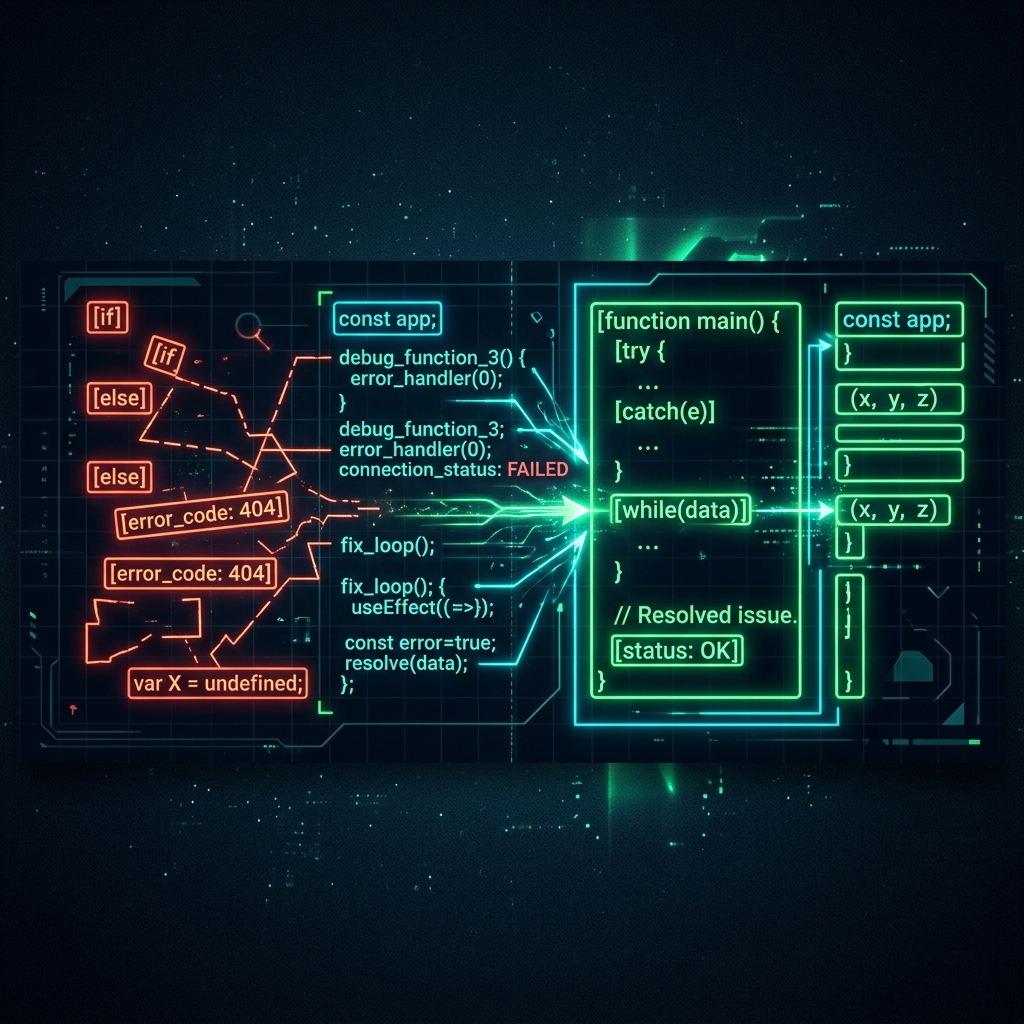
How to Fix the Antigravity IDE Broken Workspace & Update Loop
Woke up to your Antigravity IDE auto-updating, only to leave you trapped in a basic chatbot window? Tried downgrading back to your previous setup, but got hit with a frustrating "version no longer supported" error?
You aren't alone. With the launch of the new workspace architecture, Google has officially split the developer platform into four distinct surfaces. Unfortunately, due to overlapping configurations, many developers are finding themselves locked out of their code editors. Here is the step-by-step recovery plan to get your workspace back up and running.
Note: The core issue stems from the split between Antigravity 2.0 (the agent manager backend) and the standalone Antigravity IDE client. Below, we break down exactly how to clear out the colliding folders, terminate lingering threads, and secure your editor layout.
What Actually Happened: The Split
As part of the latest updates, the Gemini CLI ecosystem is transitioning. Google is unifying the workspace stack into two core user interfaces:
- Antigravity 2.0: The new standalone Agent Manager and Chat UI panel.
- Antigravity IDE: The VS Code-style workspace editor complete with file tree navigation, workspace access, and integrated terminal panels.
Because of this sudden transition, both surfaces are competing for the exact same local configuration directories under your system's user profile (specifically in %APPDATA%). When they conflict, the IDE loses its layouts and defaults back to a raw chatbot view, refusing to load the local file tree.
Step-by-Step Recovery Guide
Perform a Configuration Wipe
To resolve the broken layout loop, you have to completely break the active configuration collision. This requires deleting folders that might be holding outdated window states:
- First, close all open Antigravity and IDE windows.
- Press Win + R on your keyboard to open the Windows Run dialog.
- Type
%APPDATA%and press Enter. Locate and delete theAntigravityfolder. - Press Win + R again, type
%LOCALAPPDATA%, and press Enter. Locate and delete theAntigravityorantigravity-updaterfolders.
Kill Zombie Background Processes
Before running any new installers, you must completely empty your system's memory cache. Lingering background services will intercept the new layout structure, causing the fresh installer to freeze on launch:
- Open your Windows Task Manager using the shortcut Ctrl + Shift + Esc.
- Look through the background list for any lingering
Antigravity.exeprocesses. - Select them and click End Task (Force Kill).
Download the Correct x64 Surface
Do not click the main default download link on the main landing site. This will often serve the incorrect manager client package. Instead, follow these steps:
- Open your browser and go directly to:
antigravity.google/product/antigravity-ide - Scroll down past the hero elements to the dedicated section at the bottom of the page.
- Locate and explicitly click to download the Antigravity IDE for x64 client.
- Run the installer. This will set up a clean, authorized 2.0 editor shell containing your file explorer and terminal panels!
Lock the Auto-Update Mode
Once your workspace layout is restored and your coding models are working correctly, block the background updater from auto-deploying the wrong surface again:
- In the editor, open the Settings panel using Ctrl + ,.
- In the search box, search for Update Mode.
- Set the value to
none.
Alternatively, you can edit your global config file directly. Add this line to your settings.json:
%APPDATA% configuration folders first to ensure they aren't being overwritten by conflicting clients.
Tired of wrestling with IDE configurations?
Take a break from troubleshooting, clear your mind, and chat anonymously with developer peers worldwide on IncogChat. No registration required, completely private, and 100% ephemeral.
Join the Developer Chat RoomRead also: Learn how to use AI chatbots without sacrificing your privacy in 2026.